
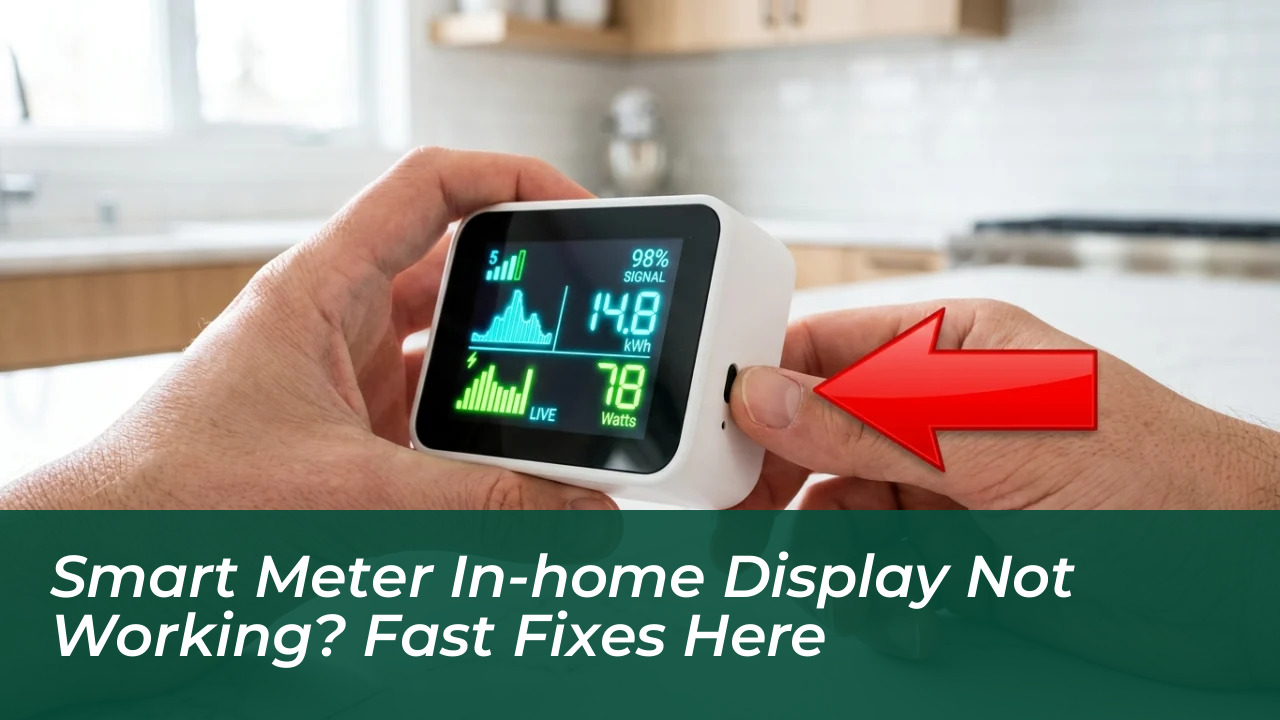



When an In-Home Display (IHD) suddenly goes blank, freezes, or loses its wireless connection, the failure typically stems from a disrupted Home Area Network signal, unseated power adapters, or an internal memory stall. Restoring communication between your standalone monitor and your exterior meter usually takes under five minutes once you isolate hardware failure from signal dropouts.
Many homeowners discover that an unresponsive monitor triggers immediate anxiety about inaccurate billing or unexpected utility cutoffs. However, the physical unit sitting on your kitchen counter or hallway table is merely an informational receiver. It is distinct from the primary electric and gas meters attached to the property exterior. Understanding how these systems interact prevents unnecessary service calls and gets your real-time tracking back online without delay.
Common Reasons Your In-Home Energy Monitor Disconnects
Most wireless utility monitors run on an internal short-range radio frequency network. This network bridges the short physical gap between your utility entry point and your living space. Thick masonry walls, metal appliances, and crowded Wi-Fi router frequencies can easily disrupt this link. When disrupted, the unit reports that it cannot find the network.
Rechargeable internal batteries present another common failure point. While many monitors remain plugged into wall outlets around the clock, internal backup cells eventually degrade. This causes the screen to reset or flicker whenever slight voltage fluctuations occur along the power cord. A common mistake is assuming that a disconnected visual monitor alters the consumption data recorded by utility providers. In contrast, the physical meter continues logging electricity usage independently. Network updates from energy providers can also momentarily knock a receiver offline while fresh firmware protocols settle.
Step-by-Step Fixes to Reconnect Your Monitor
Before contacting your local utility support team, running through a standard hardware and connection sequence resolves the vast majority of display freezes:
- Perform a controlled hard restart: Unplug the monitor from its wall outlet. Hold down the physical power button on the back or side for ten seconds until the unit shuts down completely. Wait two minutes before plugging it directly into a working wall socket rather than an extension cord.
- Relocate the unit closer to the primary meter: Bring the monitor within twenty to thirty feet of your external electricity meter. Minimize structural barriers like steel beams or heavy insulation. Leave the device plugged in near this location for fifteen minutes to allow network handshakes to complete.
- Inspect the charging cable and port: Examine the small mini-USB or micro-USB pin inside the port for bent contacts or lint buildup. Power adapters can lose efficiency over time. They may provide enough current to turn on indicator lights, but not enough to illuminate the main LCD panel.
- Allow automatic resynchronization: Once the unit powers on near the meter, avoid pressing buttons repeatedly. Modern displays cycle through self-diagnostic routines that can take several minutes to locate the exterior transmitter.
Decoding Display Errors and Hardware Symptoms
Different screen presentations point directly to specific underlying malfunctions within the hardware ecosystem. Identifying these symptoms helps you take targeted action:

- Completely blank screen with no indicator lights: This indicates a faulty power supply or a depleted internal battery. Test an alternate compatible cable and wall socket.
- Flashing antenna icon or “Searching for Meter” message: This signals a signal obstruction or range limit. Relocate the monitor closer to the main exterior service box.
- Frozen numeric readings that do not update: This points to an internal firmware lockup. Complete a full ten-second power cycle to clear the temporary cache.
- Incorrect tariff rates or missing gas readings: This shows a communication lapse between fuel modules. Contact customer support to verify account provisioning.
Busting Common Misconceptions About Smart Meter Monitors
A widespread myth suggests that a blank smart meter display means your utility company has halted power monitoring, or that you will receive an estimated bill. In reality, external smart meters communicate independently with the central utility infrastructure via cellular or municipal mesh frequencies. They entirely bypass your home display unit.
Another common belief is that the indoor screen runs over standard home Wi-Fi and requires your personal internet router password to function. In-home monitors connect exclusively to the meter’s secure dedicated frequency band. Changes to your home broadband name or password have zero impact on your display’s operation.
When to Contact Your Energy Provider
When home troubleshooting fails to restore the screen after a full 24-hour settling period, your device may have suffered an irreversible internal chip failure or expired pairing registration.
- Check your utility provider’s mobile app if your physical screen refuses to power on. Digital account dashboards provide identical usage data directly on your phone.
- Inspect your external meter enclosure to ensure no physical damage or environmental dampness is interfering with transmitter components.
- Request a replacement monitor from your utility provider if standard power cycling fails. Many companies provide free hardware swaps for defective or out-of-warranty units.